
Host your first game
A Razzia game has two sides: the host, who runs the game from the manager interface, usually shown on a big screen, and the players, who answer from their phone or computer.
Start a game
Section titled “Start a game”-
Open the manager interface at
http://<your-server>:3000/managerand enter the password set inMANAGER_PASSWORD. -
In the Play tab, pick a quiz. The example quiz created on the first start works for a test.
To write your own, see Create a quiz.
-
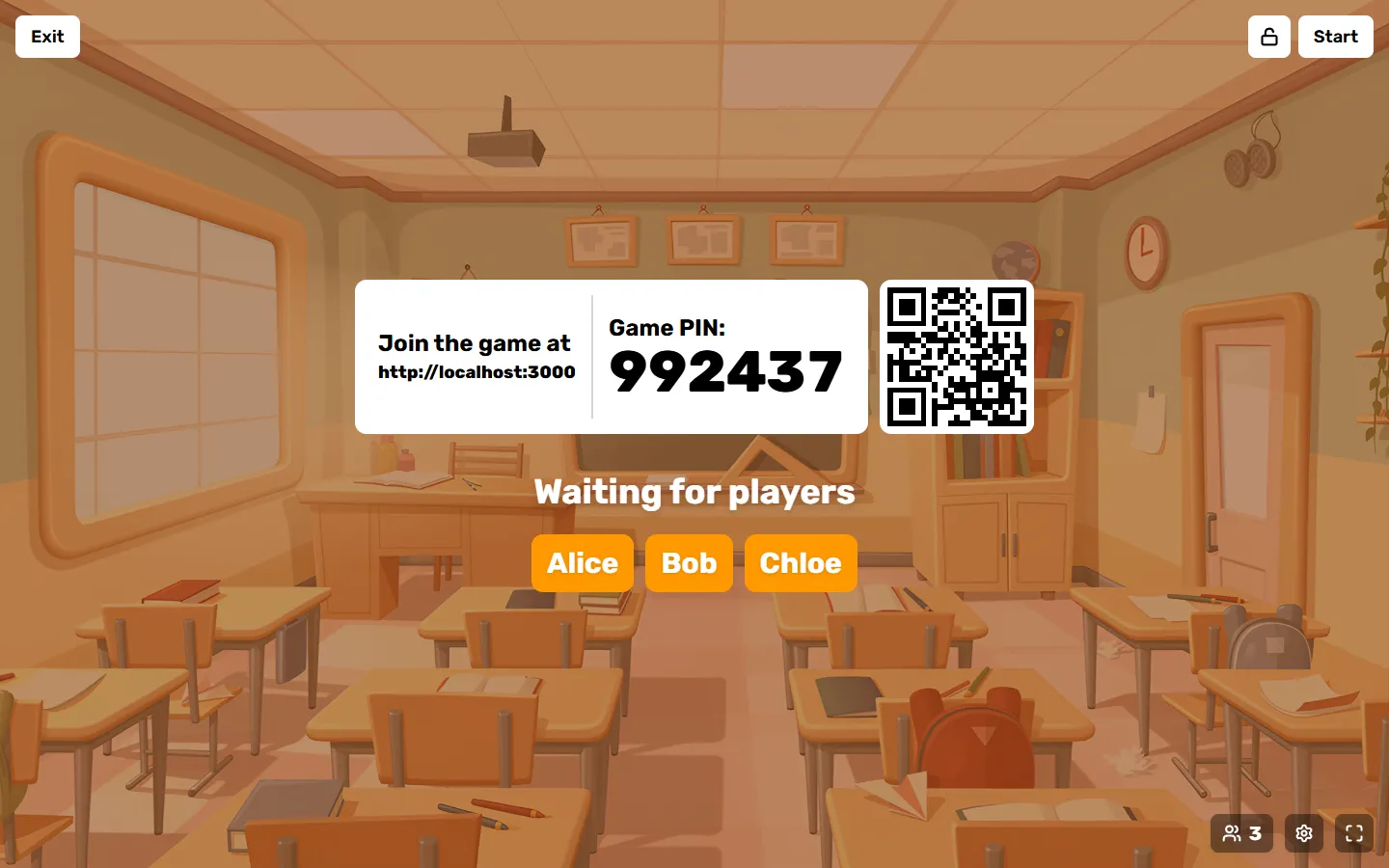
Click Start game. Razzia creates a room and shows its 6-digit PIN.
-
Before starting, adjust the game settings with the gear button at the bottom right if you need to. See Game settings below.
-
Ask the players to open
http://<your-server>:3000and enter the PIN, or to scan the QR code. They appear in the lobby as they join. -
Once everyone is in, click Start.
Run the game
Section titled “Run the game”Each question goes through the same steps:
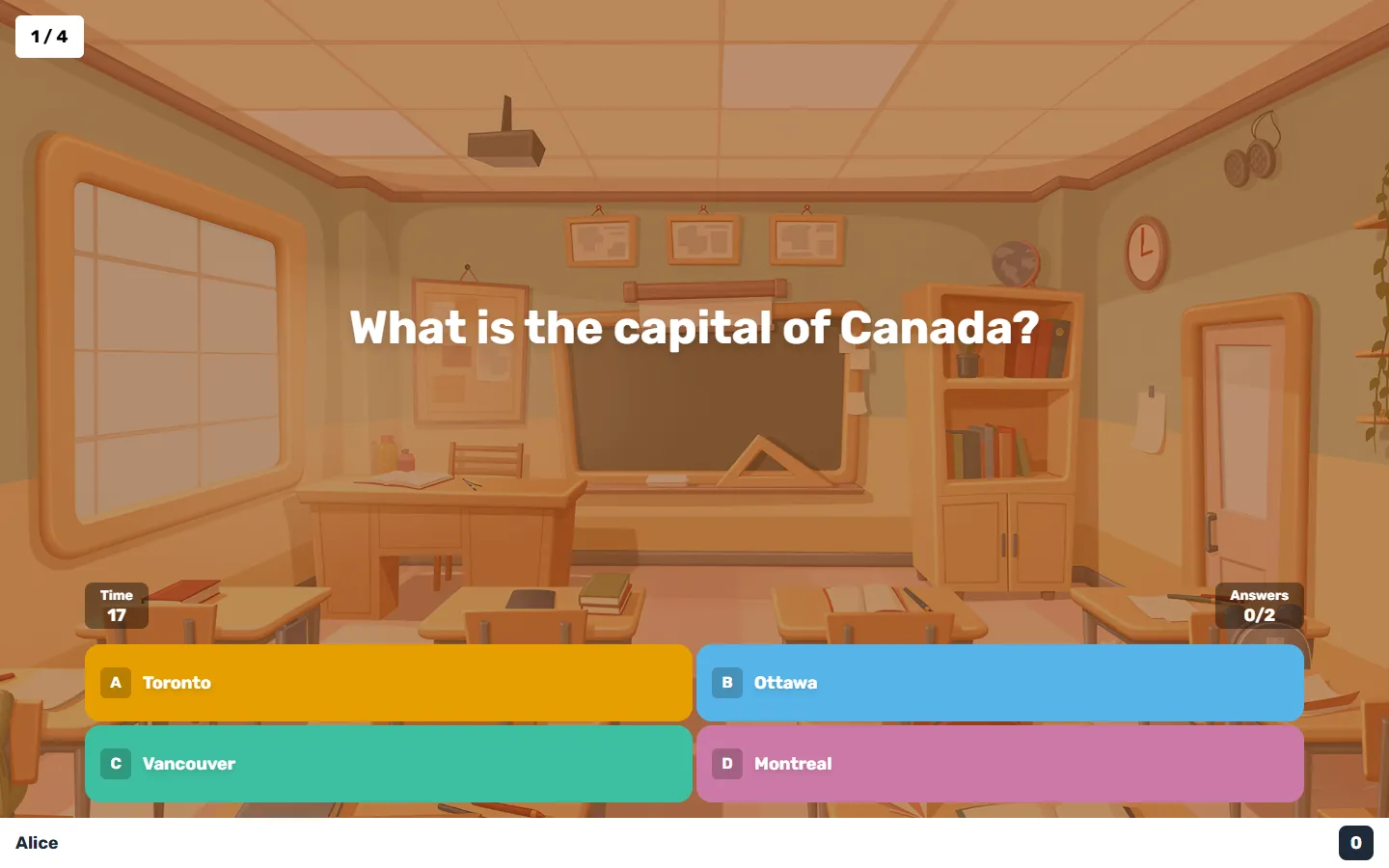
- The question is shown on the main screen.
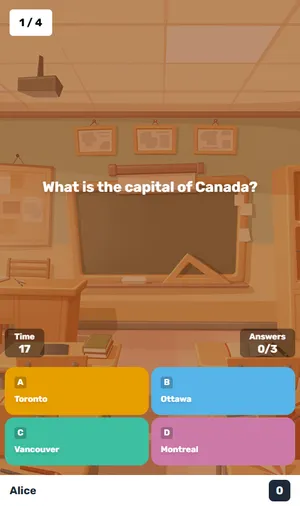
- The answers open, for a limited time. Players answer from their device.
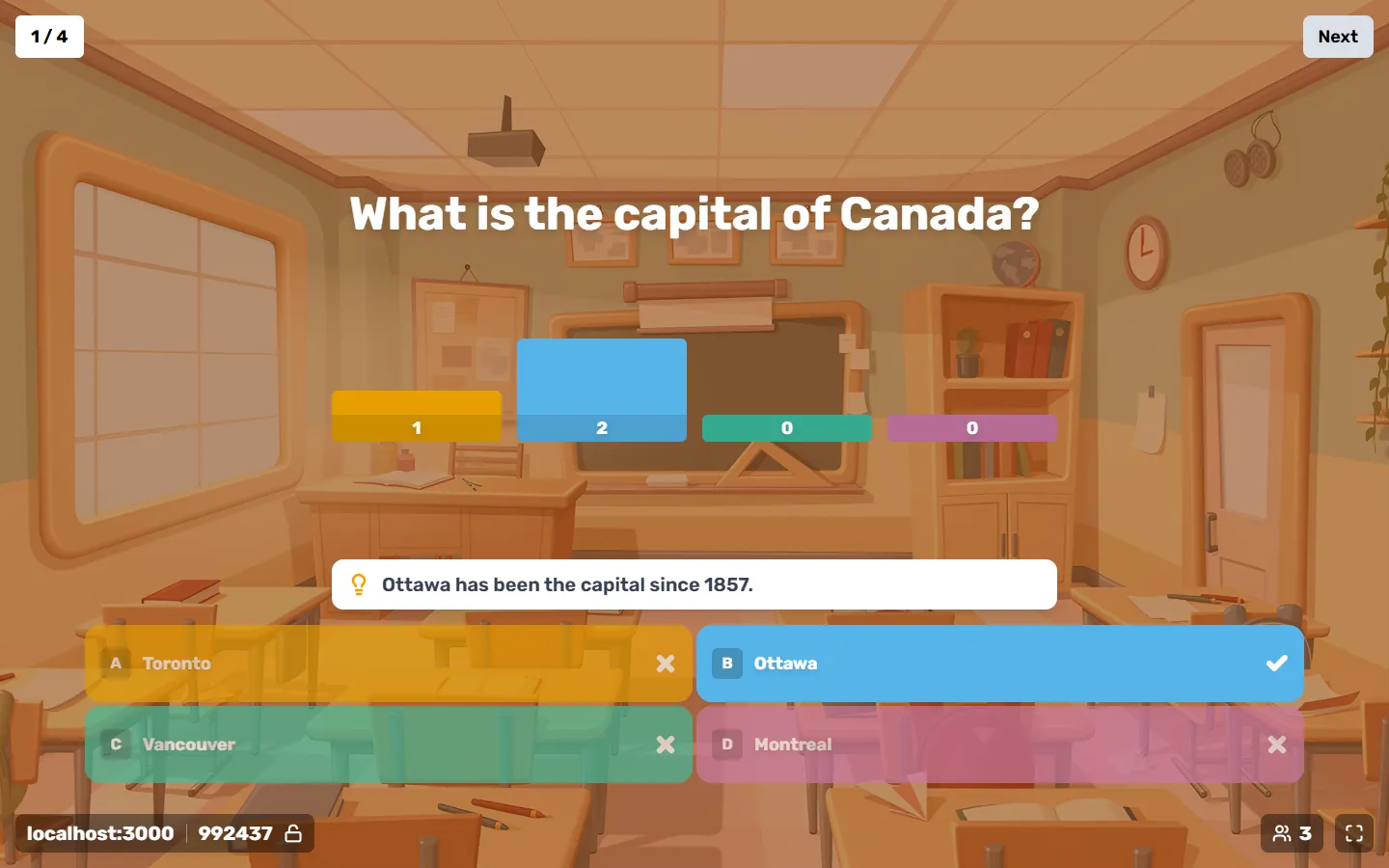
- The right answer is revealed, with how many players picked each answer.
- The leaderboard shows the scores.
Players can answer from a computer or a phone:
As the host, you move the game forward at your own pace with Next. While answers are open, Skip closes them early. They also close as soon as every player has answered.
At the end, the podium shows the top three players.
During the game, you can:
- Lock the room with the lock button, so no new player can join. Players already in the game can still reconnect.
- Kick a player from the lobby.
Players who lose their connection, for example after locking their phone, can reconnect and keep their score.
Game settings
Section titled “Game settings”Settings apply to one game and can be changed until it starts.
| Setting | What it does |
|---|---|
| Generate nicknames | Players pick from generated names instead of typing their own. Useful with young players or a large audience. |
| Answers only | Players only see the answer buttons, with a button to read the question again. Use it when everyone can see the main screen. |
| Auto-advance | The game moves on by itself after the answer reveal and the leaderboard. You choose how long each of them stays on screen. |
Review the results
Section titled “Review the results”When a game ends, its results are saved. Open the Results tab in the manager interface and pick a game to see, question by question, what each player answered and how many got it right.
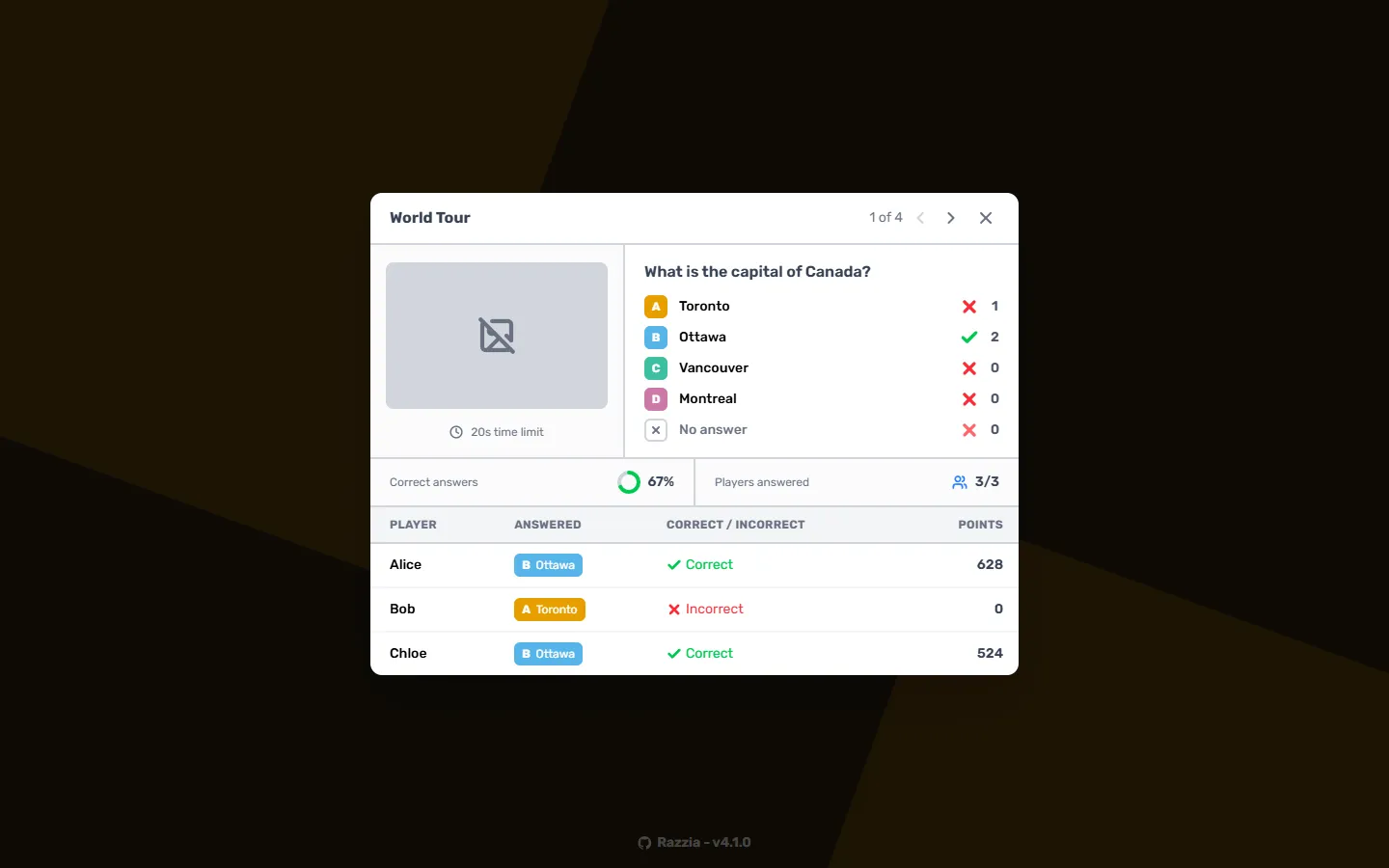
Results are stored as files in the config/results folder. See The config folder.